
.jpeg)
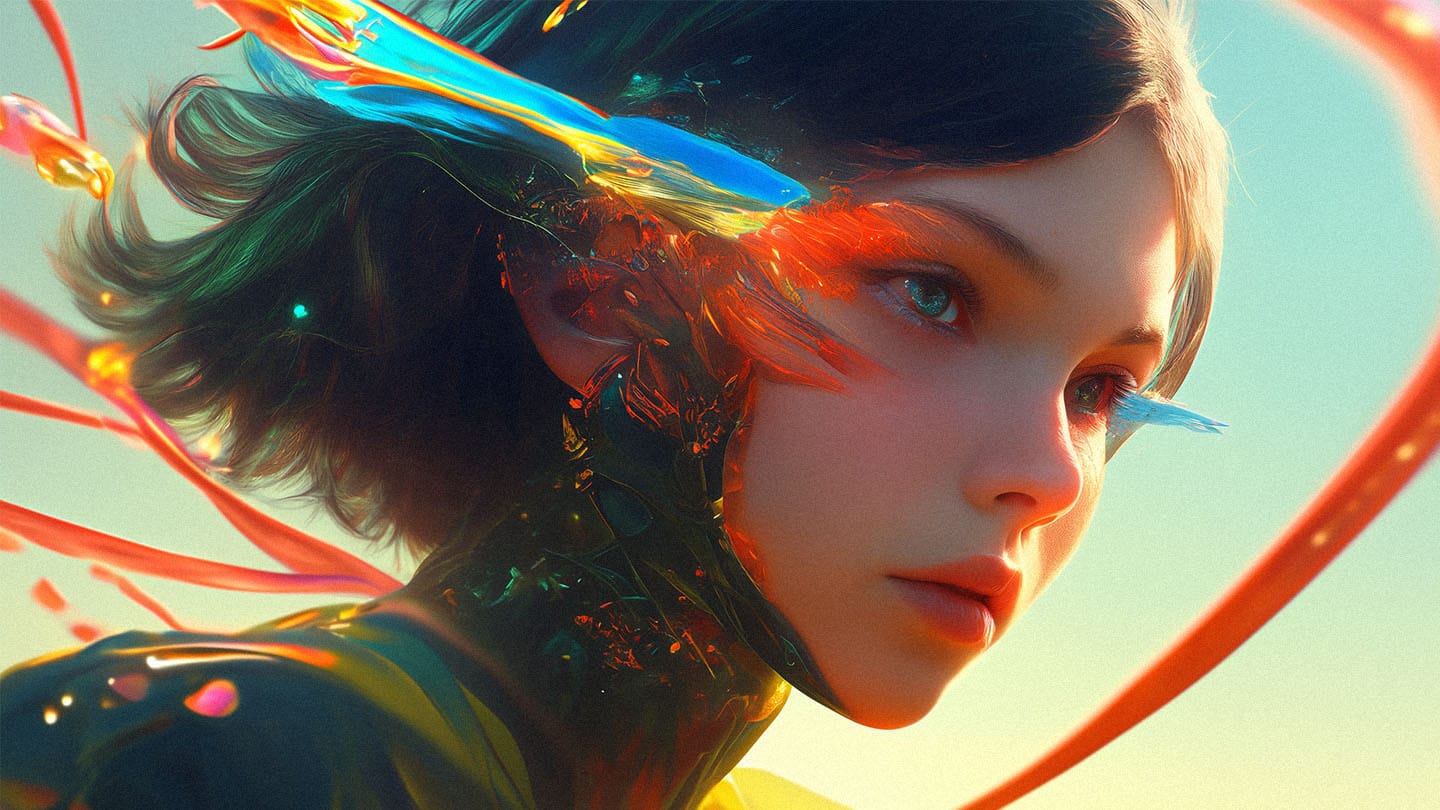
In this guide, we explore artistic styles, apply SREF codes, and refine our Midjourney prompts using Midlibrary catalog, tools, and benchmarks.
Why Use Midlibrary?
At the heart of Midlibrary is a hand-picked collection of thousands of Midjourney styles and SREF codes.
A style, or a style modifier, is a name, title, technique, or a combination of these that Midjourney recognizes from its dataset (i.e., real-world artistic prototypes).
An SREF code, or a style reference, is a numeric identifier representing a unique set of visual features, such as contrast, composition, color palette, and more.
By adding a style modifier or an SREF code to your prompt, you apply a specific visual style to the final image. Let’s see how this works using a relatively simple prompt. Here is one without any specific style references:

How to Use Artistic Styles in Your Prompts
There are two main ways to add a style modifier to your prompt: Basic and Optimal prompts.
Basic prompts are straightforward—simply add by [artist's name], or in style of [technique, genre, art movement] after your prompt.


An Optimal Prompt is a more artist-specific formula that adjusts the word order, placing the modifier earlier in the prompt.
For example instead of <prompt> by Arnold Bocklin, try Arnold Bocklin's painting depicting <your prompt>.
Such prompts are more likely to yield results that align better with the chosen style.


If you want to go in-depth and learn more about Optimal prompts, check out our guide: How to Apply Any Style to Any Prompt→
Applying SREF Codes
Using SREF codes in your prompts is even more straightforward. Instead of a word-based modifier, simply add the --sref parameter after your text (or image) prompt, followed by a numeric code.


Learn more about finding and applying SREF codes to your prompts in our guide Deep Dive into Midjourney SREF Codes→
Finding the Right Style
There are several ways to explore Midlibrary in search of the perfect style—depending on your goals and how adventurous you feel. Let's explore a few real-life examples to illustrate different approaches.
Magical Illustration
For this first example, we’ll use a relatively complex prompt—detailed enough to challenge Midjourney while remaining deliberately vague on stylistics. This gives the AI the freedom to visually interpret the prompt on its own.

Pretty! But let’s take it to the next level by finding the perfect SREF code—one that will transform this image from a generic AI-generated piece into a highly stylized illustration with a distinct and unique visual identity.
We start with the SREF codes page—a grid showcasing all available styles, along with powerful search and navigation tools to help you find the best match for your creative vision.
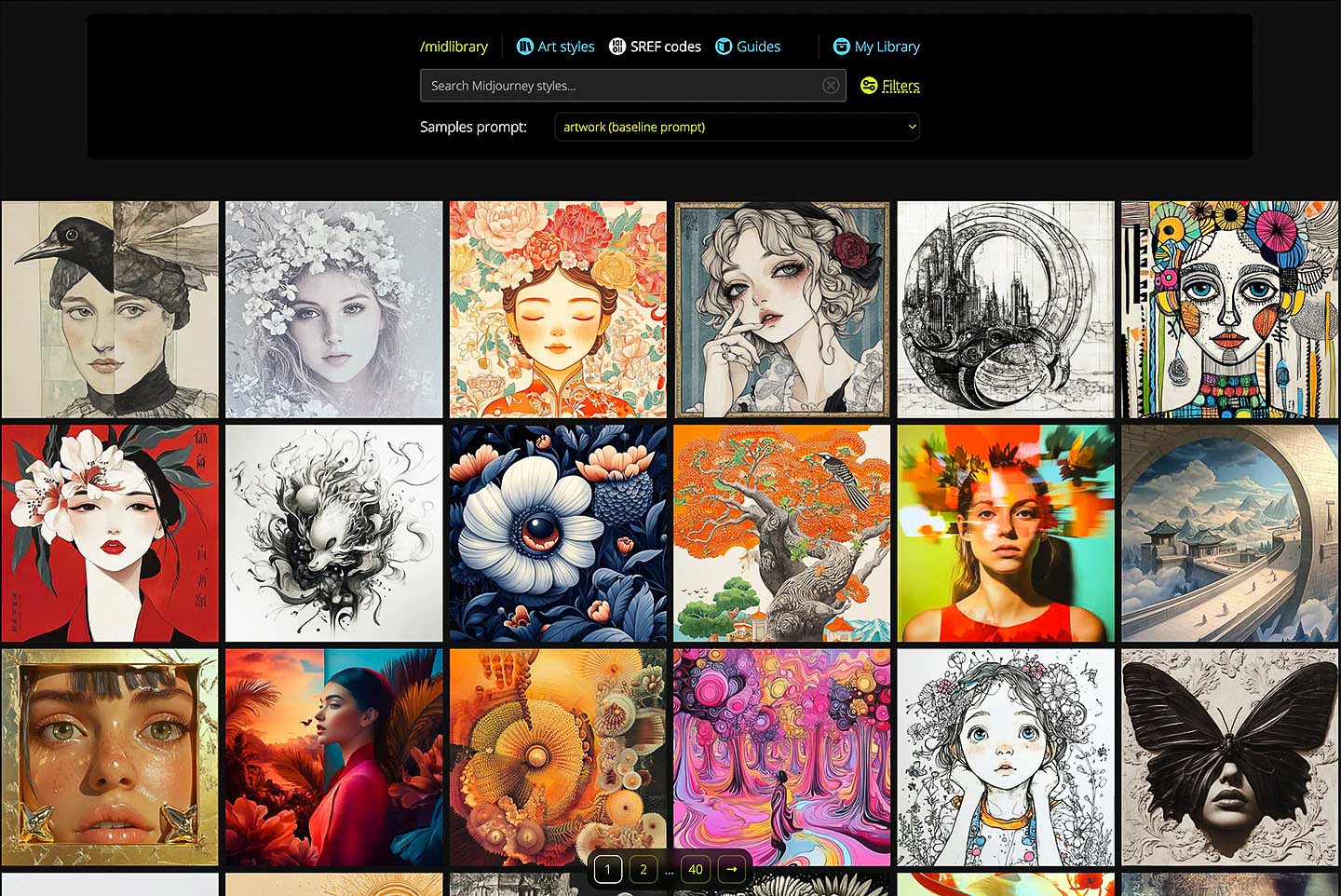
At the top, you’ll find the navigation panel, which lets you search the catalog, apply filters, and adjust the sorting order.
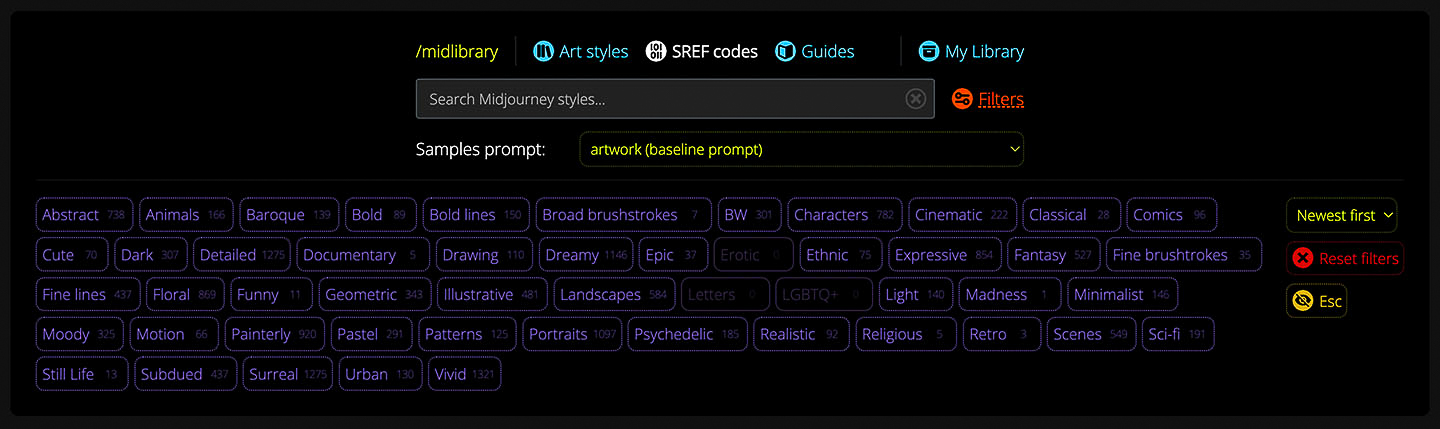
Filters represent a set of 51 visual features that fall into six categories: Theme, Style, Technique, Subject, Color, and Cultures + Identities.
For this example, we’ll use only filters, and focus on styles that are dark yet have vivid color elements. As you apply filters, only options that yield at least one result with your current selections will remain active.
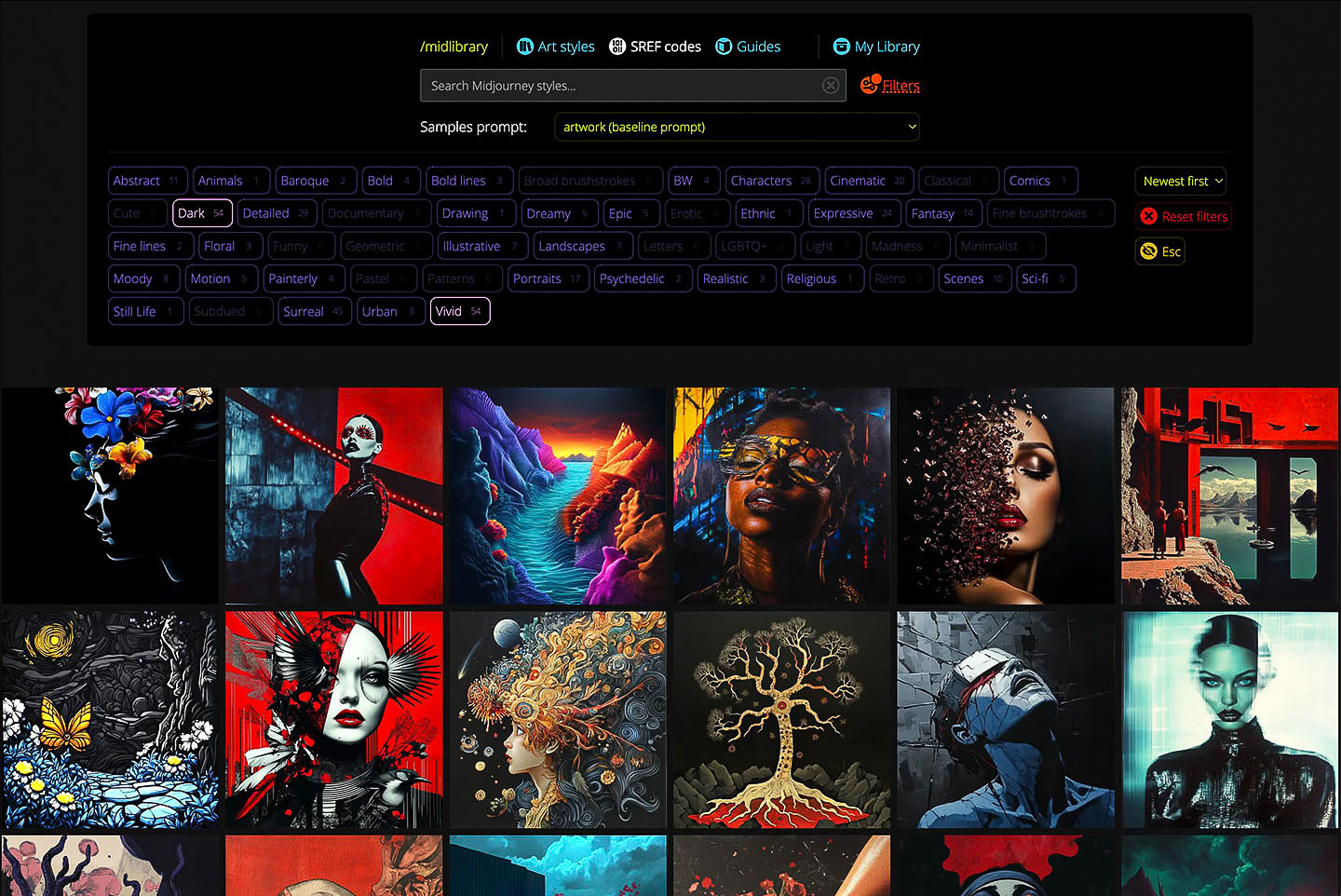
Once you’ve found a style you like, hover over the preview to see its four variants. Click the preview to open the style card, where you’ll find the style title (linked to its dedicated page) and a Copy SREF code link for easy copying and pasting the code to your prompts.
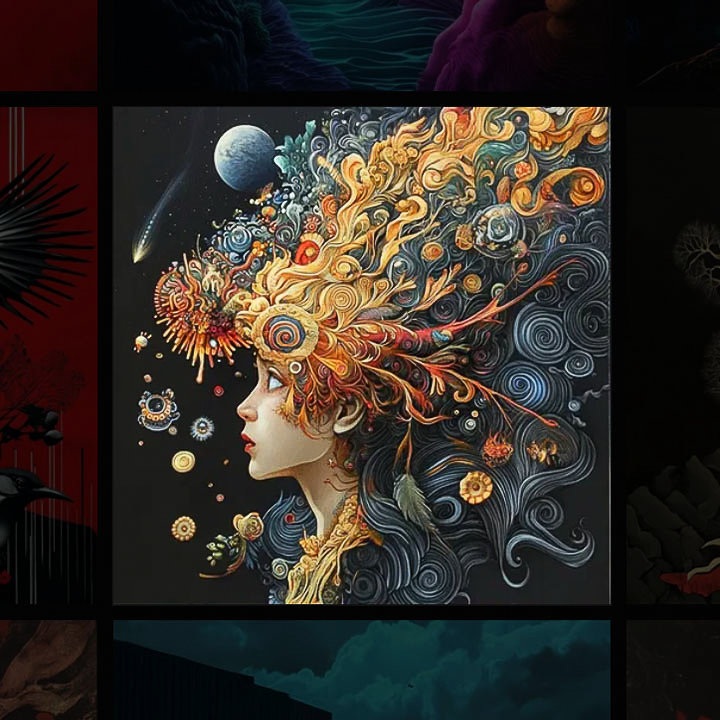
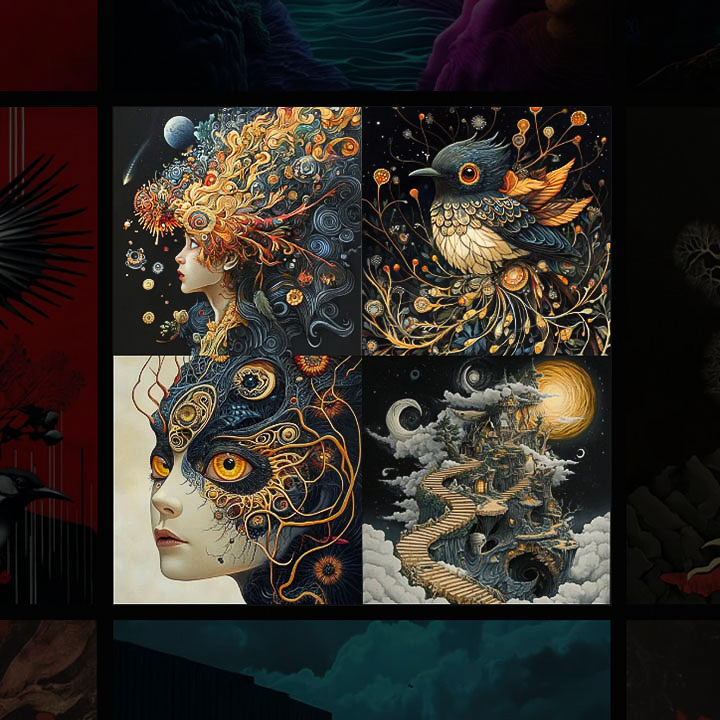

Let’s navigate to the style’s dedicated page, which is structured into several sections—each offering deeper insight into the style’s visual and narrative essence.
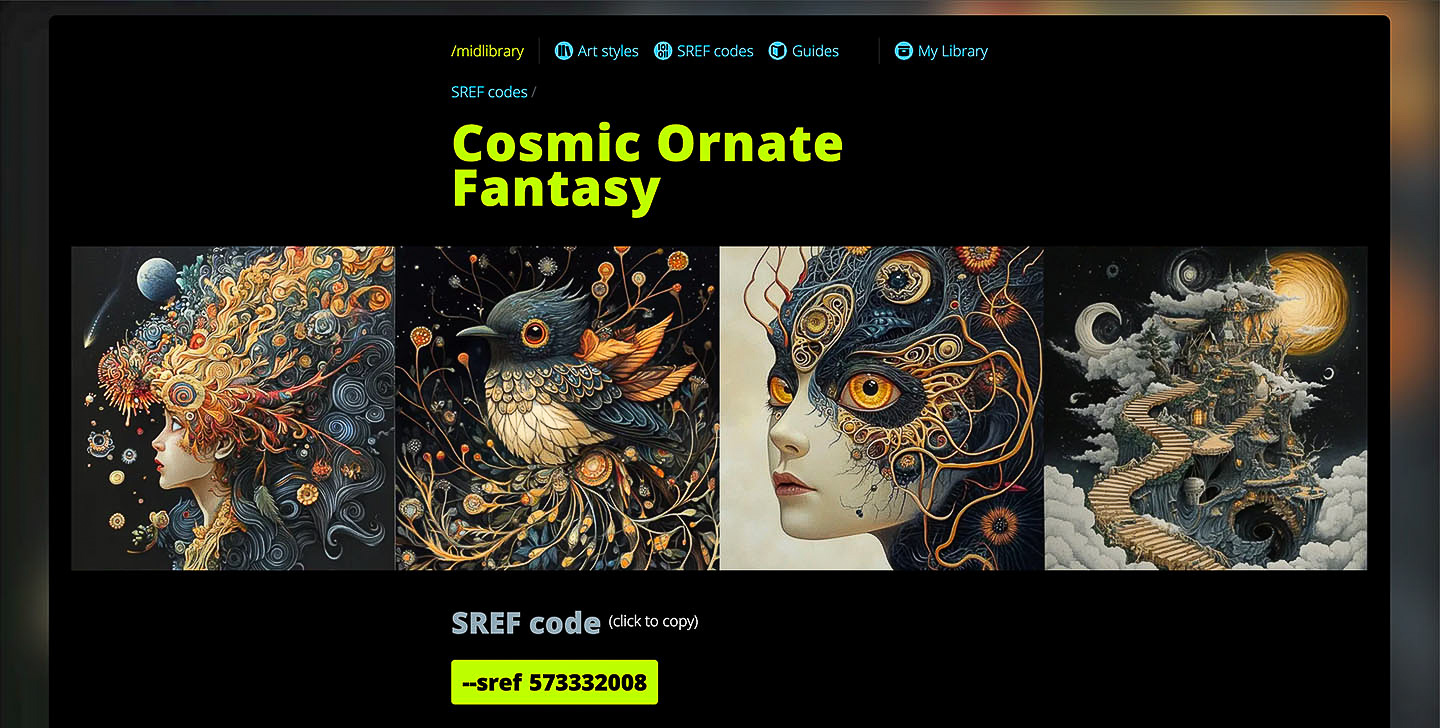
At the top, you’ll find the four variants of the artwork prompt, also known as the baseline sample. Here, you’ll also find the sref code button. Similar to the preview link, clicking it will copy the --sref <code> to clipboard—ready to be pasted into your prompt.
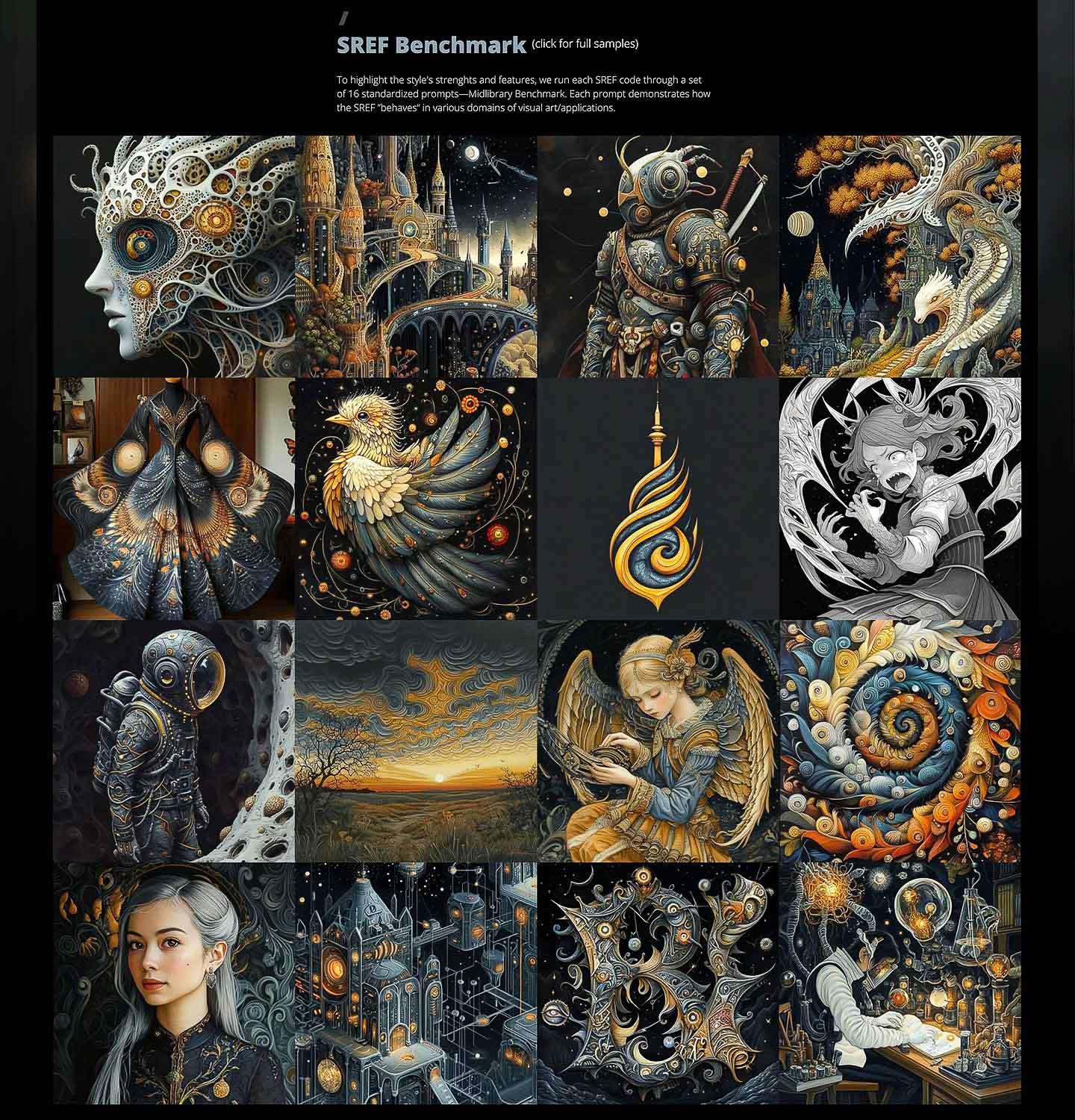
Scrolling further, you’ll see the rest of the SREF code benchmark prompts, each represented by the first variant of its sample. Hover over a sample to view its prompt. Click the preview to open it in lightbox mode and see all four variants.
The last two sections display the visual features attached to the style and
a short description summarizing the key visual and narrative elements that define the style across all benchmarks.
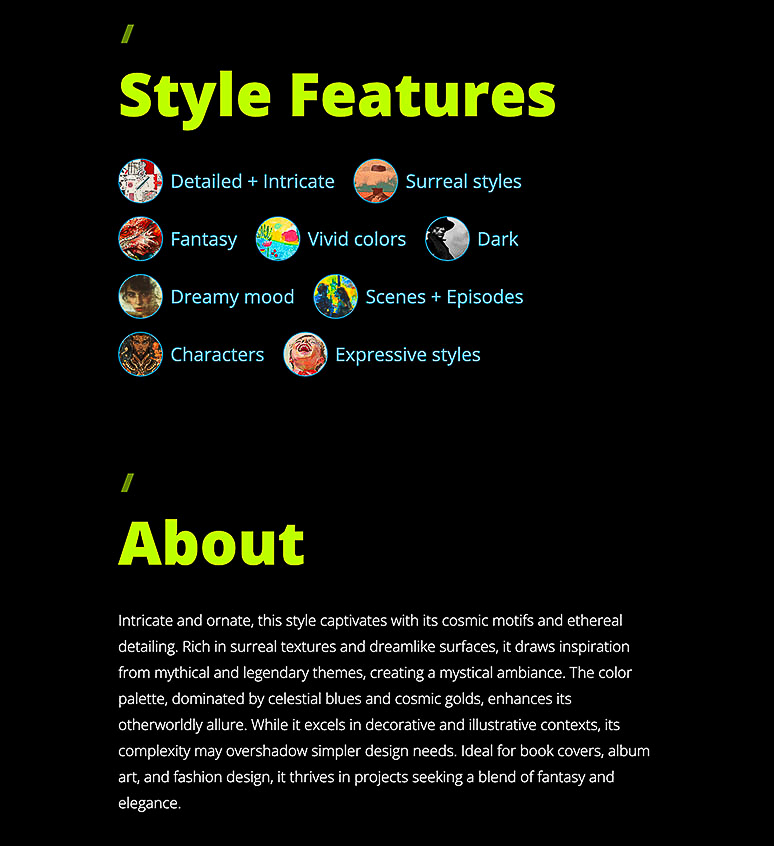
Clicking a feature link will take you to the main catalog grid, automatically filtered to display styles that share that feature.
If you want to start fresh, simply click the Reset button in the Filters panel to clear all selected filters.
Finally, when you're ready to see your chosen SREF code in action, just paste it after your prompt—it's that easy!
Here is how the style we picked compares to the “generic,” no-SREF version:

And here are just some of the other codes from the same selection—each taking our initial prompt in a unique artistic direction.


Photorealistic Royalpunk
For this example, let's use a simpler prompt, giving Midjourney even more freedom in its interpretation.
Let's use another key instrument from the navigation panel, exclusive to the SREF codes page—the prompt selector.
Each SREF code in the Midlibrary catalog is illustrated with 17 standardized benchmark prompts, designed to showcase how the style performs across different domains of visual art.
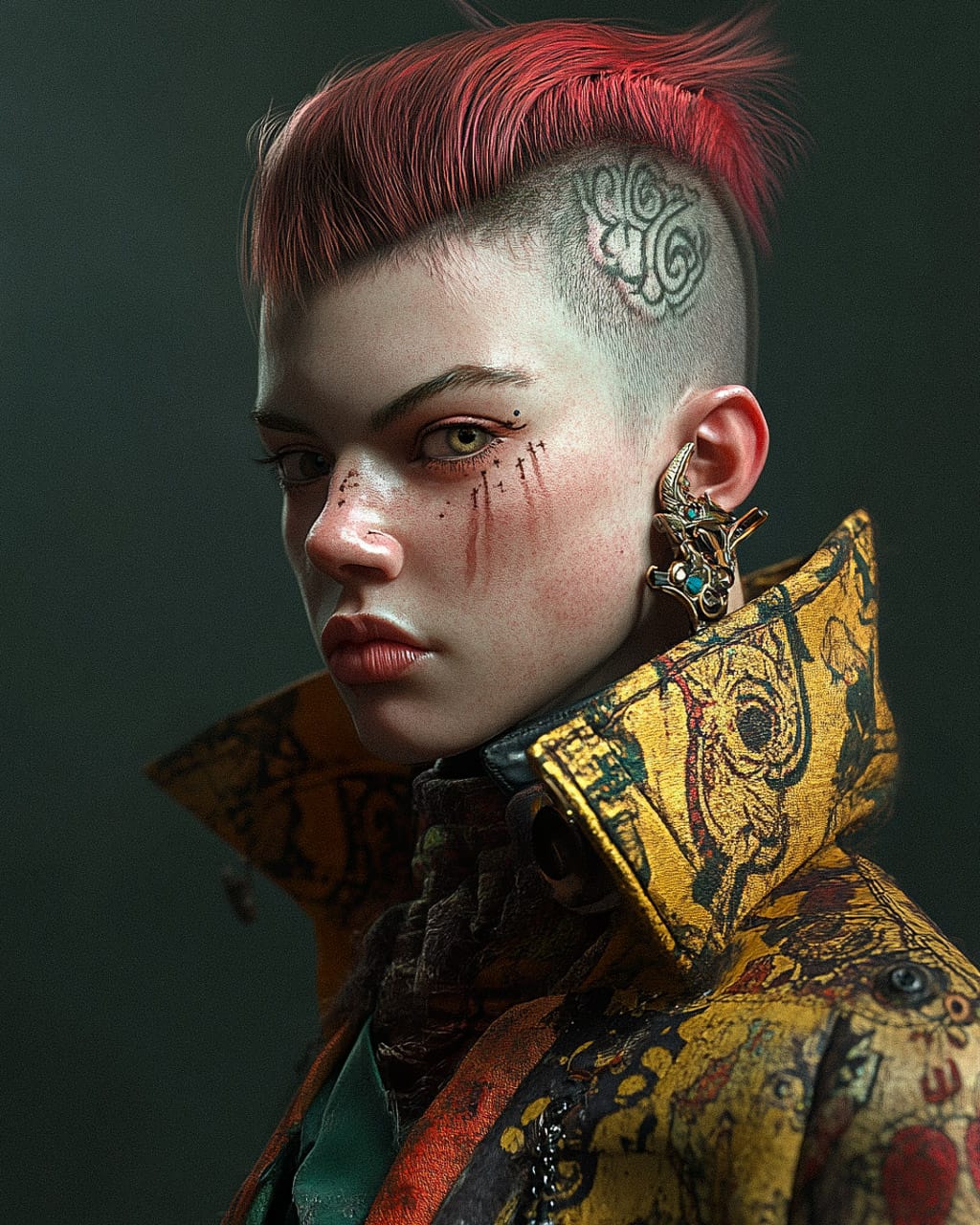
Since we’re aiming for photorealism, let’s switch to the photographic portrait of a female protagonist prompt. This will update the grid to display samples generated with the selected prompt, while filters and styles remain unchanged.
In addition to switching to the photorealistic prompt, let’s also use the search input to look up “noble.” After exploring a dozen SREF codes with promising previews, here are the ones I ultimately selected for the prompt:


Again, very different artistic directions! Which one would you pick?
Poster Design
For the last example, let's find an artistic style for a classical poster design:

This quest begins on the Art styles page, which closely resembles the SREF codes grid. However, unlike the SREF page, it lacks the SREF sample prompt selector and features a Categories section in the filters panel, allowing for a different approach to filtering styles.
Unlike features, which allow multiple selections, categories are limited to one at a time—though you can still select multiple features within the chosen category.
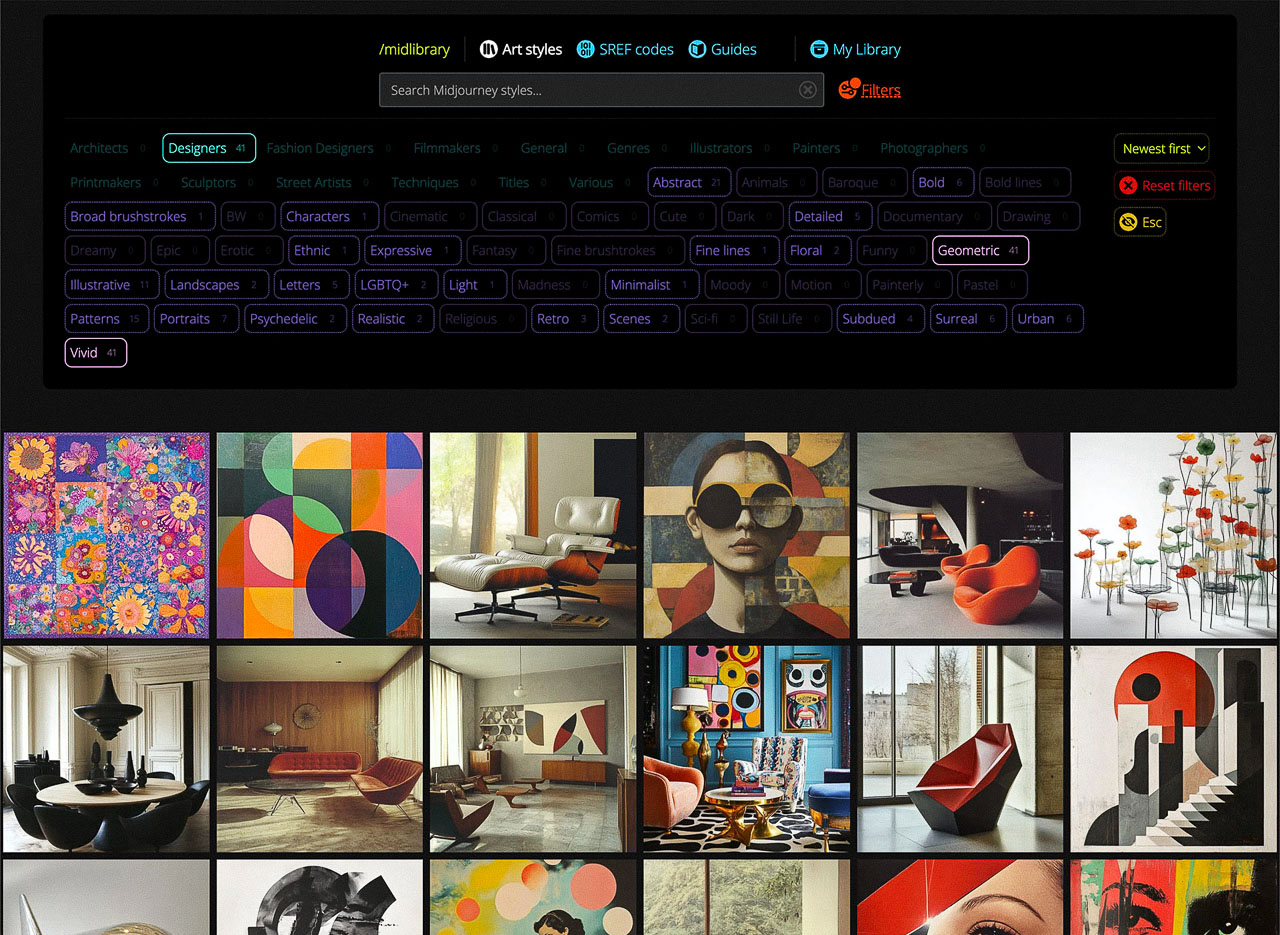
Like a stlye? Click the name to explore it futher:
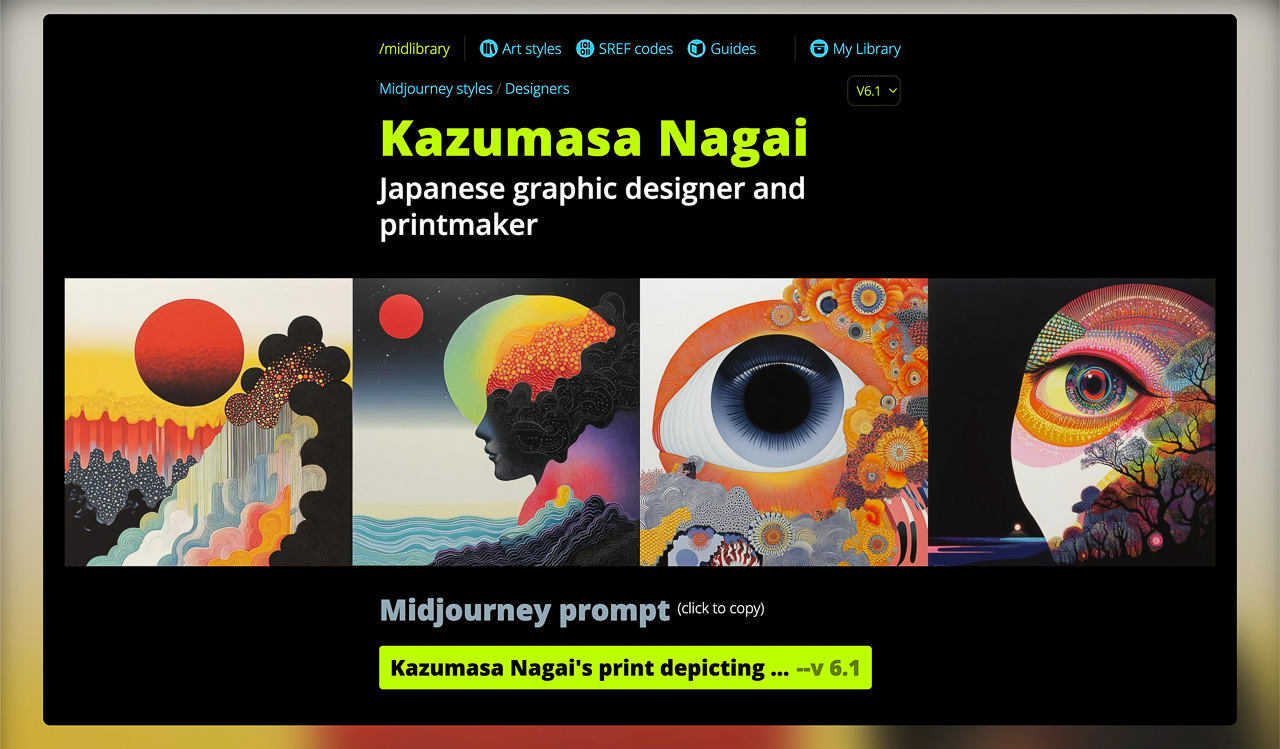
The prompt button display the Optimal prompt (if available), or Base prompt (if not). Clicking the button will copy the prompt to clipboard.
This is followed by the style features block:
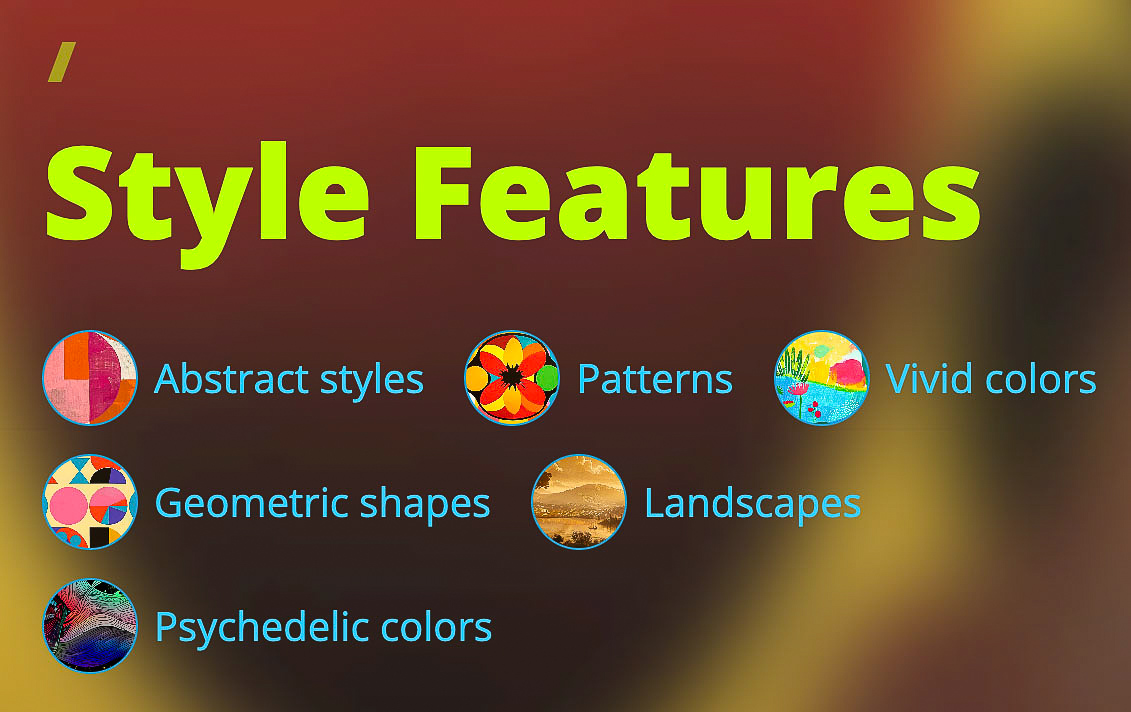
Next is the Midlibrary Art style benchmark (available for selected styles)—a set of nine prompts designed to test how the style performs across different domains of visual art. Yes—it’s the father of the SREF Benchmark!
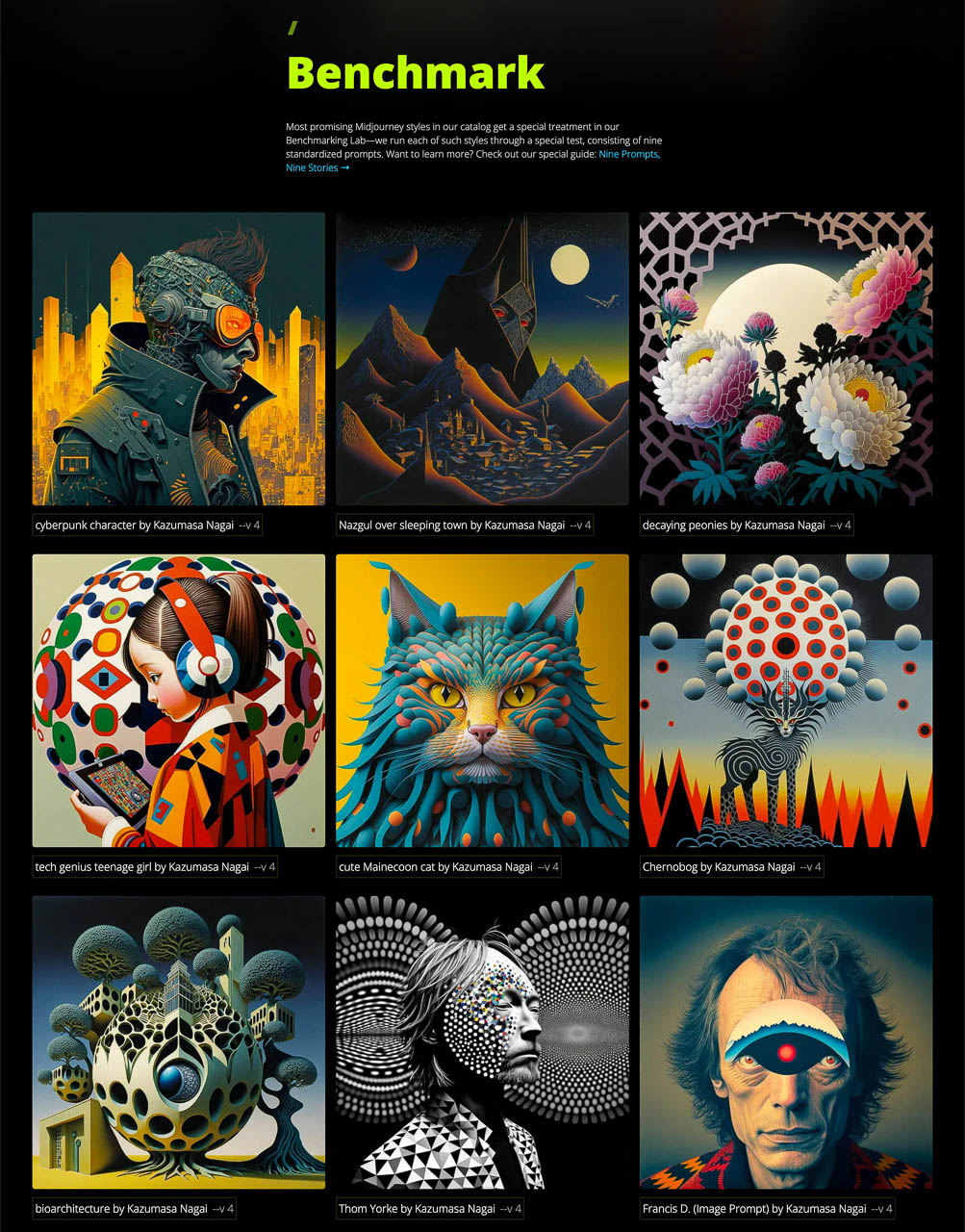
Uncover the stories behind Midlibrary benchmark prompts in the Nine Prompts, Nine Stories guide→
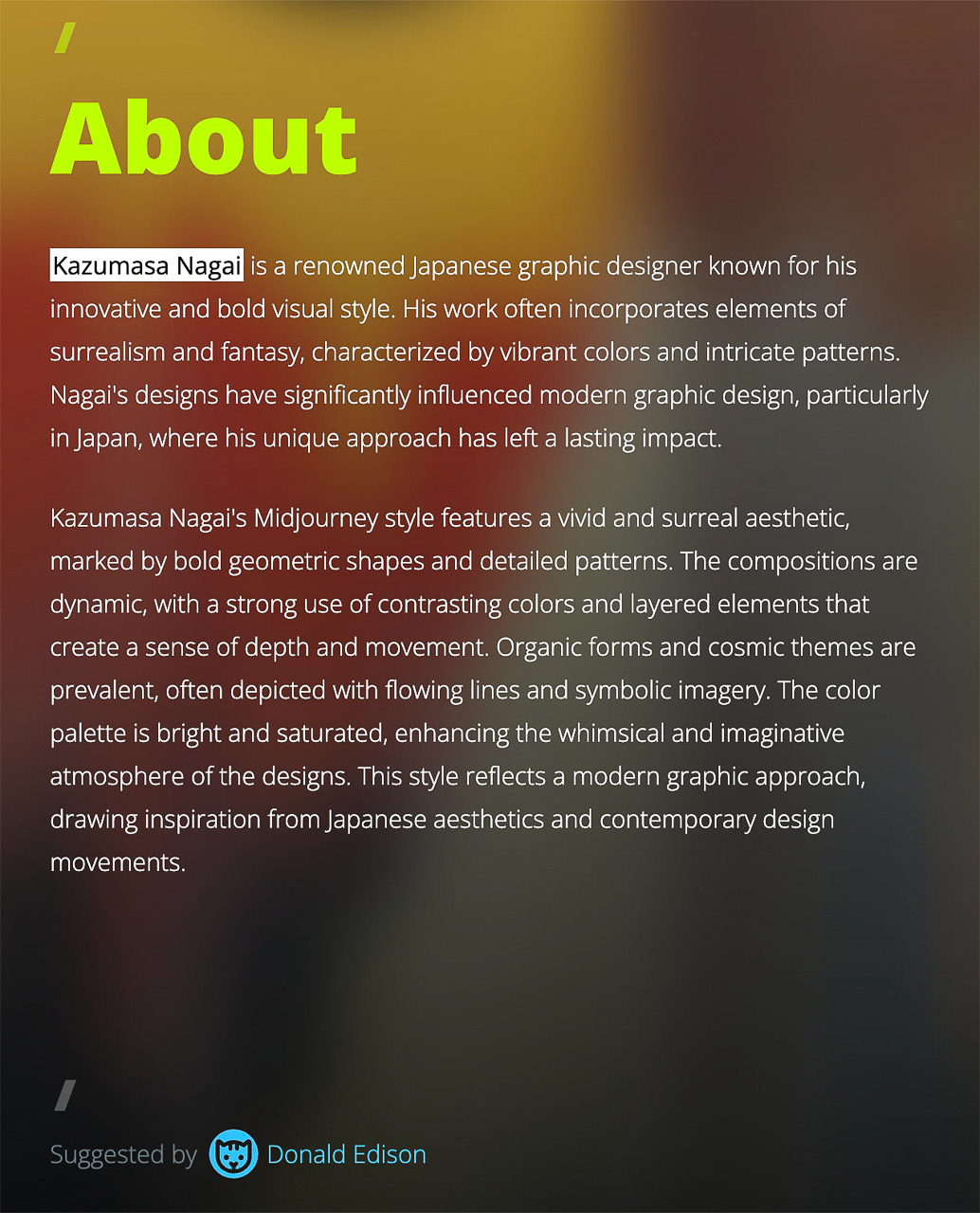
Following the benchmark, you’ll find the style details section, providing deeper insight into the style’s characteristics and attributes.
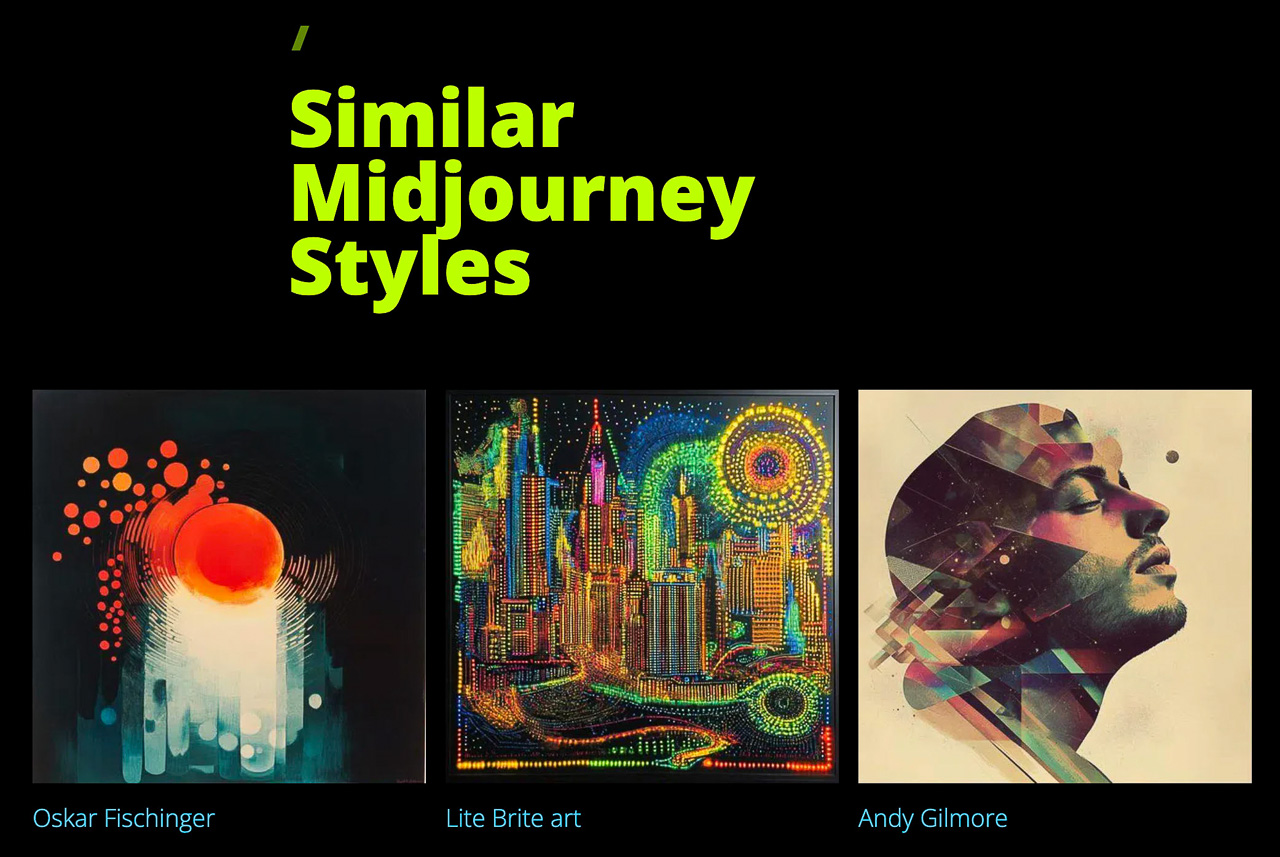
The page closes with the similar styles section, allowing you to explore styles further without going back to the grid:
When the selection of styles is made, let's apply them to the initial prompt:

And here are some other gems I found along the way:
.jpg)


Explore Further
Two more ways to exlplore Midlibrary vast catalog of Midjourney styles and SREF codes are via Categories and Features pages.
Midlibrary’s catalog continues to expand, integrating new styles and enhanced classification methods. Regular updates introduce additional SREF codes, refined categorization, and deeper analytical insights.
For further exploration, refer to our guides and stay updated via the Midlibrary newsletter.
If you have questions about Midlibrary, want to offer a collaboration, or suggest a feature—please, contact us via community@midlibrary.io or via the Contact Us form.
Unless noted otherwise, all images on this website are created by the Midlibrary team using Midjourney AI and are not representative of real artists' works or real-world prototypes of the Midjourney styles used. Please respect the copyright—kindly ask us before re-using any materials published on Midlibrary.io.
♡

