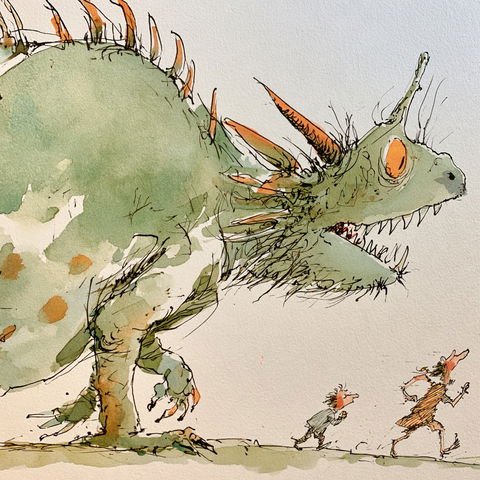
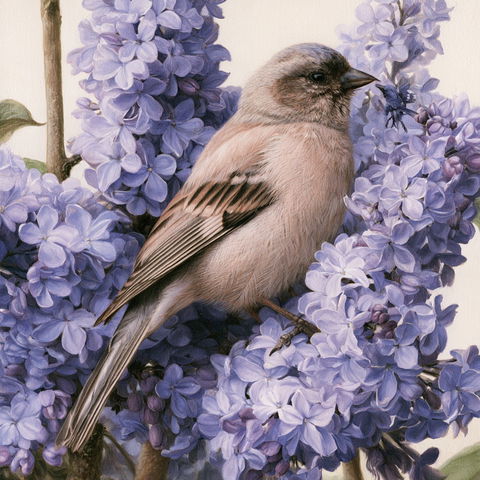
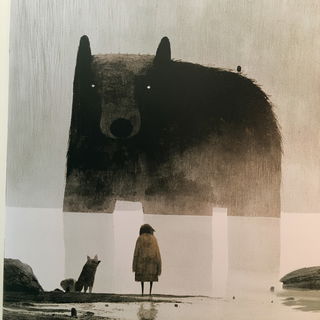
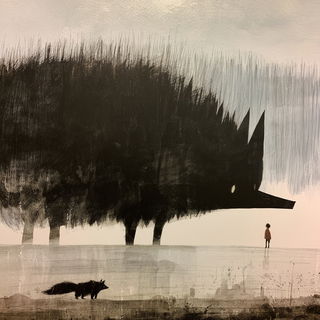
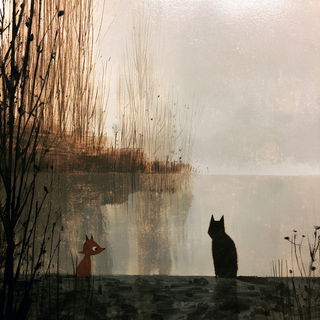
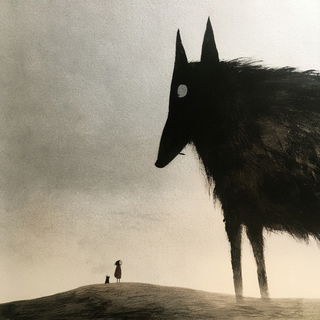
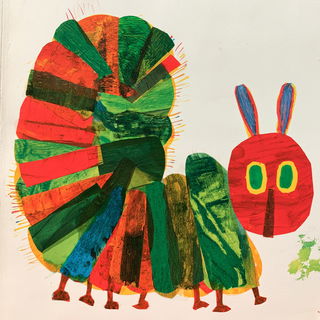
Save your favorite Midjourney styles and SREF codes and organize them into Personal Collections.
Collections are your personal treasure troves of Midjourney styles and SREF codes. Feel free to organize them however you like: group them by colors, themes, visual features, or even your own projects.
To start saving styles, simply create a Midlibrary account—it only takes a minute and is free!
If you already have an account, simply click the My Library link at the top right corner on every page to log in and go to your Collections!
You can add both Art styles (“traditional” styles activated by prompt modifiers) and SREF codes (styles activated by numeric codes) to your Collections.
To do so, click on a style preview in the grid. An overlay menu will appear. Click Add to Collection link.
A pop-up window will open with all your Collections, or just a New Collection button if you haven't created any yet.
Click the Collection preview to open the action menu. From there, you can add a style to the Collection or remove it if it's already included.
Once you've created your first Collection, you can manage it and all subsequent ones from your My Library page. This is the main hub where you'll see all your Collections and the styles within them. For more advanced options, such as profile picture and display name, or managing your subscription, you can navigate to the Library Settings page.
There are two ways to create a new Collection:
When saving a style. As mentioned above, when you click Save to Collection link on any style, the pop-up will have a New Collection button.
From the My Library page. Simply click the New Collection link in the bottom-right corner of the page header.
In a pop-up window, enter a name for your new Collection and click the Create Collection button. That's it!
Your Collection is now ready and will appear in the Collections pop-up window when saving styles.
You can rename or delete a Collection at any time from the My Library page. Click on a Collection preview to open the overlay menu and select Rename or Delete. Alternatively, when you are on a Collection's page, you will find Rename and Delete links at the bottom right corner of the page header.
Please be careful when deleting, as this action cannot be undone.
To see the contents of a Collection, click on its preview on the My Library page. This will open the overlay menu, from which you can click the Collection's name to go to its page. There, you can browse all your saved styles, sort them by addition date or alphabetically, and adjust how many are displayed on a page to make finding the right one easier.
When you click on a style preview, the overlay menu will appear with options to easily add the style to another one of your Collections with Add to Collection link, or delete it from the current Collection with Remove from Collection link.
However, the most important link here is Copy prompt (or Copy SREF code for SREFs). This is the primary way to use a style. It copies the necessary text prompt modifier or numeric --sref code to your clipboard. You can then paste it directly into your Midjourney prompt to evoke the desired visual style!
For a detailed walkthrough on how to navigate and apply Art styles and SREF codes in Midjourney, we highly recommend our Beginner's Guide to Using Midlibrary→
There are limits on the number of Collections you can create and the number of styles you can save in each. All free Midlibrary accounts start on the Reader tier, which includes one Collection with a maximum of 36 styles.
If you find yourself needing more space, you can upgrade your tier to vastly expand your capacity for saving and organizing your favorite styles. Even the first paid tier, Explorer, allows for the creation of multiple collections. You can manage your subscription on your Library Settings page in the Tiers tab.
If you reach your Collection or style limit, you will be prompted to upgrade your account. You can either upgrade to a higher tier to increase your limits or free up space by deleting existing styles or Collections.
You can choose between Monthly and Yearly subscription plans. The Yearly plan offers a 20% discount compared to the Monthly plan.
Personal Libraries and Collections are continually evolving. We are always working on updates and improvements. If you have any feedback, suggestions for enhancements, or need to report a glitch, please don't hesitate to contact us through this form or at community@midlibrary.io.