Finding styles
Over 9,000 styles is a lot to scroll. Start from what you already have in mind — a look, a word, or nothing yet — and the Library narrows itself to a few hundred, then to the one.
I know the look I want
Open Filters in the Library’s top line (or press Shift + F). Each column is one side of a look — mood, colour, light, technique; pick words in any of them and the Library keeps only the styles that carry all of them. Say you want dark scenes with bright colour in them: Dark and Vivid.
I know the colours
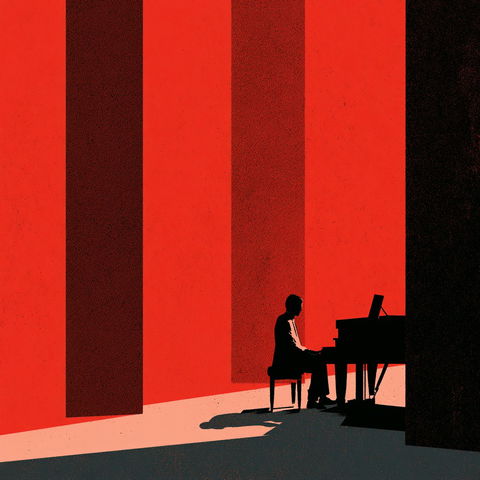
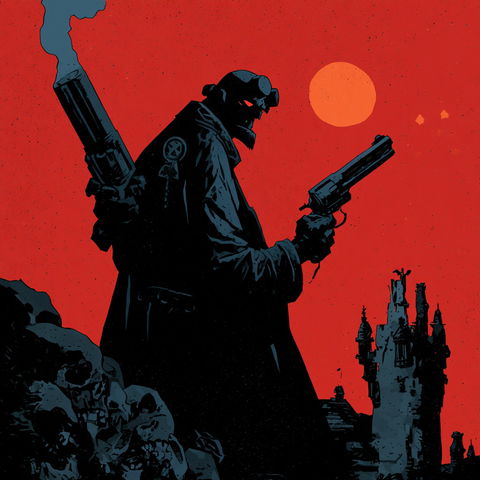
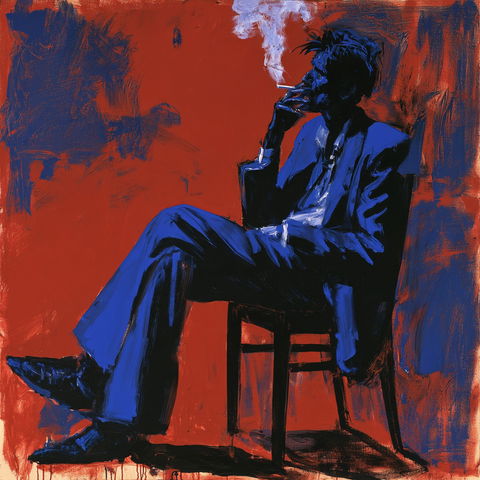
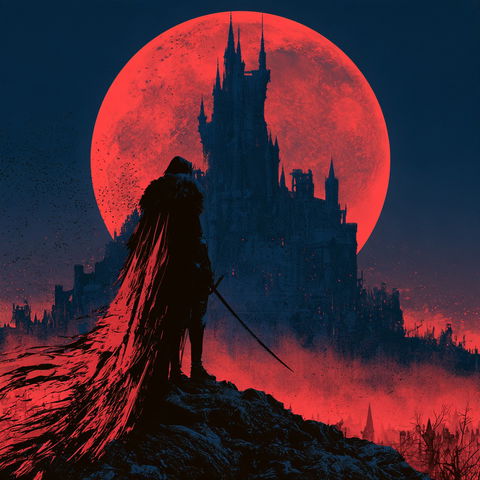
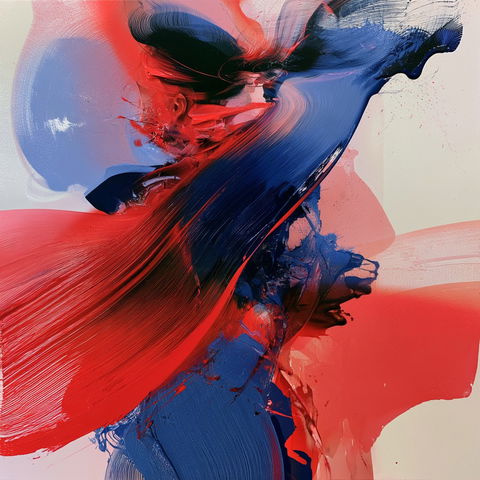
Open Colours, beside Filters (or press Shift + C). Pick as many colours as you like: each one keeps only the styles that have it too, and a swatch that would leave nothing goes dim. Black and vivid red together leave 250 styles; add dark blue and 23 are left.



I know a name or a word
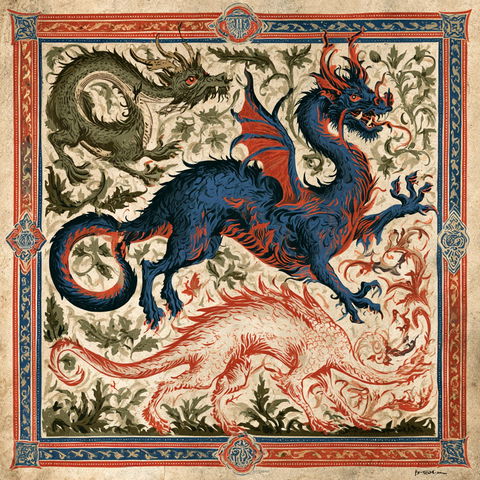
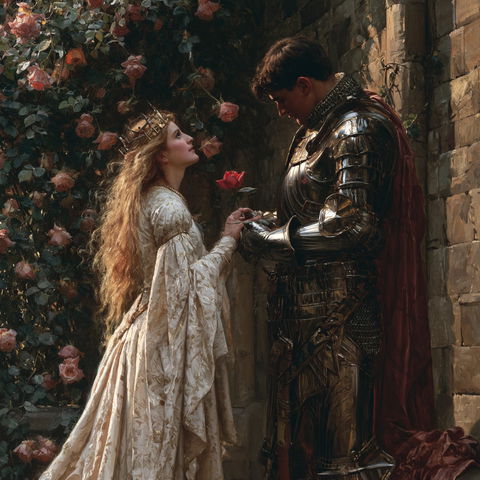
Type it into the search at the top (or press / from anywhere). Search reads names — an artist, a film, a movement — and also the words for what each style’s pictures show and how they look. So a search for medieval finds 97 styles — not only the ones with the word in their name, but every style whose pictures look medieval.

I want ideas
Nothing in mind yet? Wander. Four other ways into the Library — each a smaller, chosen window into it.


The keys
On a computer, the Library works from the keyboard. Press Tab to step onto the grid, then:
- /
- Search
- ← ↑ → ↓
- Move between styles
- C
- Copy the prompt or SREF code
- S
- Save to a collection
- Shift F
- Filters
- ?
- This list
Press ? on any page for the whole list.
Next
Collections — keep the styles you find, per project, and come back to them.
Questions — accounts, membership, and the rest.